
In this article I show you how to install or Sideloading Kodi on a Firestick.
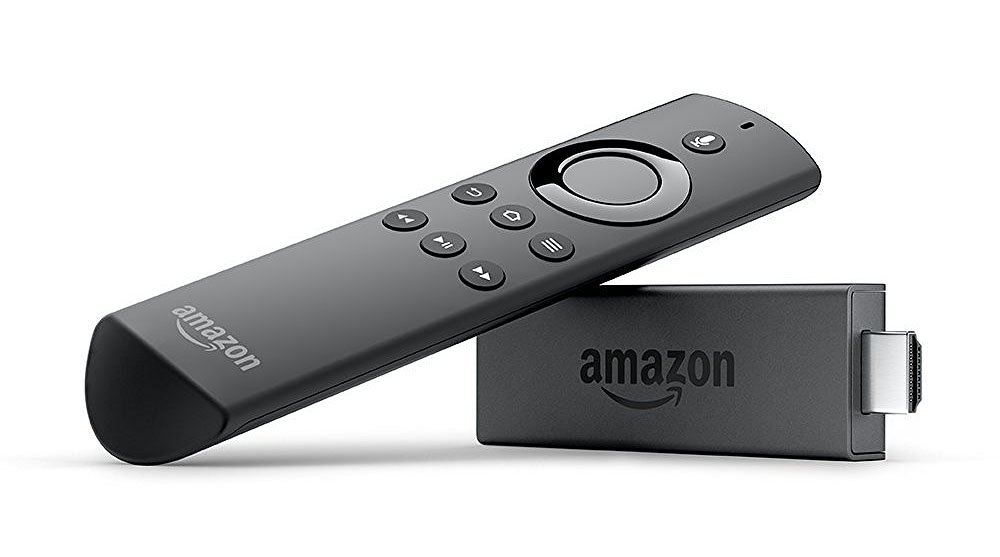
Contrary to other Android boxes / devices, the Amazon Fire TV Stick, commonly referred to as a “Firestick”, has no USB port so you can’t easily connect it to a computer or an external storage device–such as a USB key or external USB hard disk to assist in its setup. The only thing you have is a WiFi connection with very limited local network access capabilities.
Here are the steps for setting up a new "out of the box" Firestick with Kodi.
Note: "Sideloading" using developer mode is only available on Firesticks utilizing the Android (Fire O/S) operating system. Firesticks like the "Firestick Select" utilize Amazon's proprietary "Vega” O/S that does not permit "Developer Mode".

- Plug your Firestick into an Hdmi port on your TV and plug in the power source for the Firestick
- On screen - You will be asked to connect the device to your network. Connect the Firestick to your Wifi access point by selecting your Wifi network and providing the password.
- Add your Amazon account and register the device (create a new account if needed).
- Using the supplied "appstore" application, search for the app "Downloader" and install.
- In order to download and “side load” the Kodi app using Downloader, you have to enable the "Developer" option on your Firestick. More detailed instructions are listed below but here are the basic steps to follow. On your Firestick, go to “Settings” - then select "My Fire TV" and and click the select button on your remote "About" 7 times or until the “Developer options" menu appears. Note - you may need to go out and back into the submenu to see the “Developer options” menu. Now enable Downloader app under the "Install Unkown Apps" submenu in the Developer options menu.
- Use the “Downloader” app to load Kodi. In the address bar you will need to add ”https://kodi.tv”. You will be presented with Kodi’s official web site. Move the cursor and select the “downloads” section of "kodi.tv". You need select the link for the Arm v7a 32 bit Android version of Kodi.
- The Downloader app will download the Kodi installer and automatically start the install for Kodi. You may need to click on “Install”. Follow the prompts to install Kodi and provide it with access rights for storing media, etc. As part of the install, the Downloader app will save a local copy of the Kodi installer apk file in the "Files" section of Downloader on your Firestick - (something like “kodi-21.2-Omega-armeabi-v7a.apk”) in case you need to re-install Kodi again at a later date. Note - re-installing Kodi will wipe out your local data - effectively doing a factory reset.
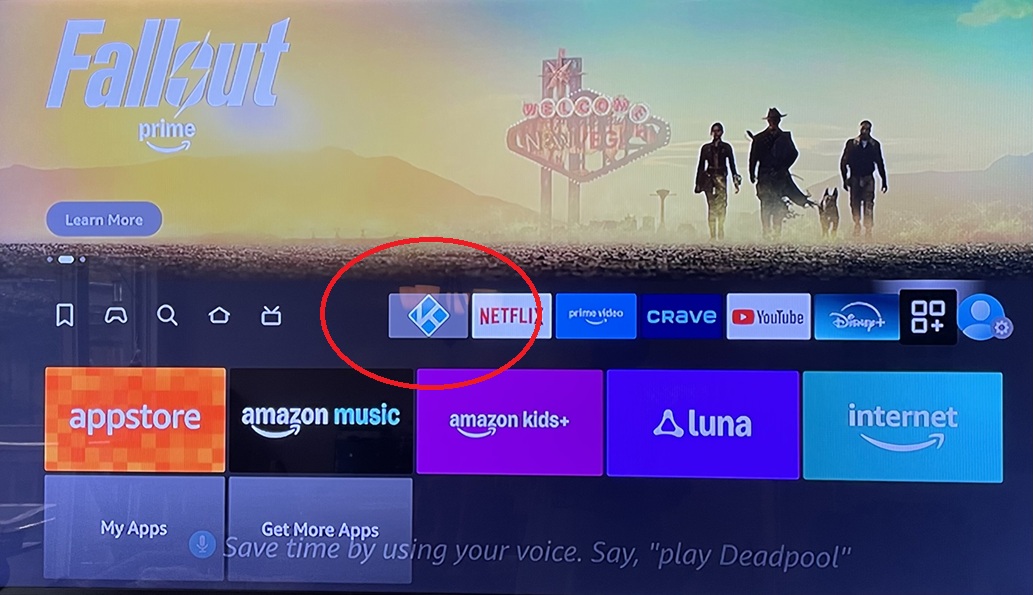
- You now have the Kodi application on your firestick and you can launch it and configure it as you like. I recommend adding the app to your shortcut bar/list on your Firestick home page for easy access.
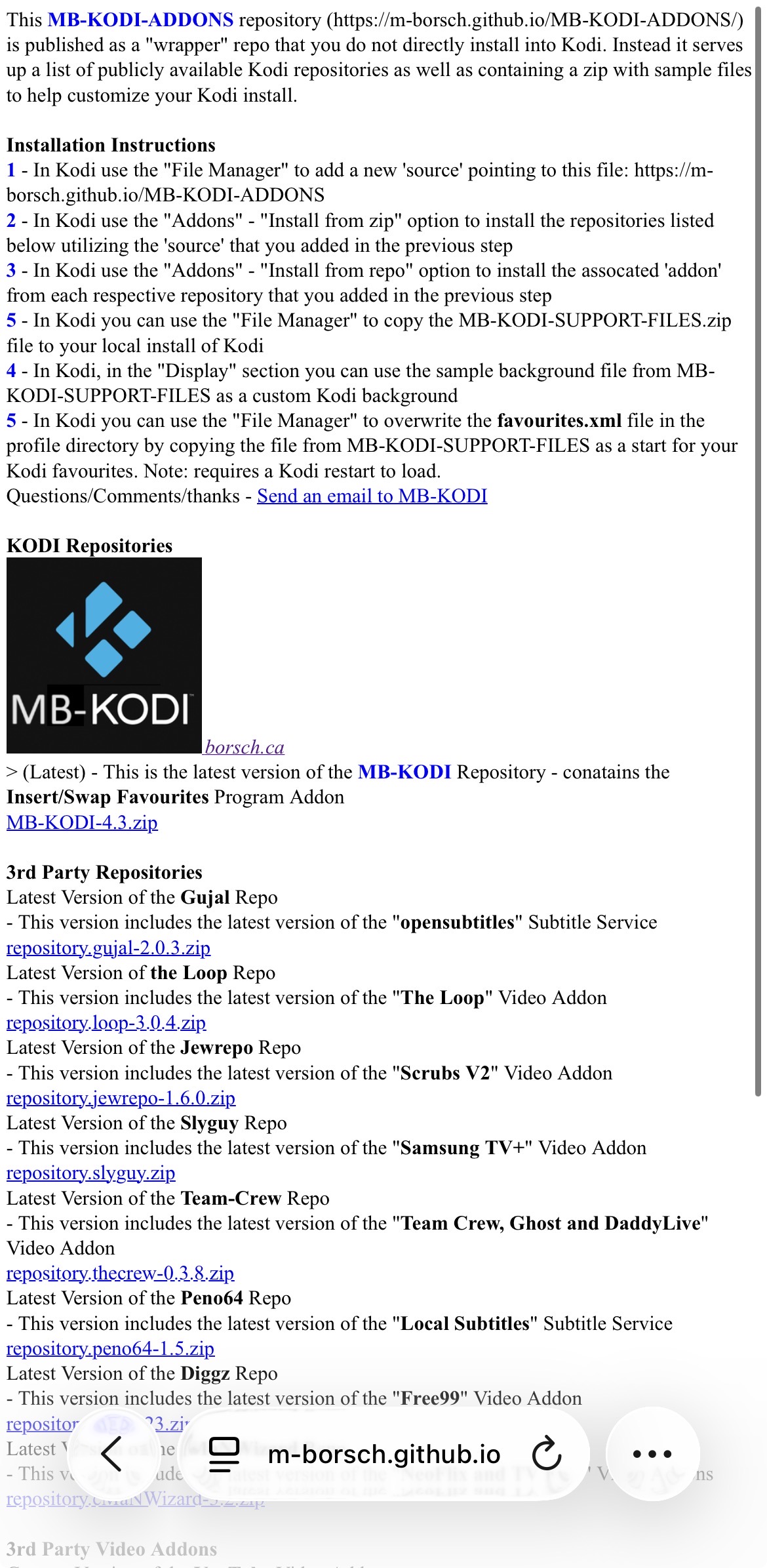
- Here are some easy setup instructions on how to get started with some useful 3rd party Kodi Repositories and associated Addons. The files with installation instructions are located at: https://m-borsch.github.io/MB-KODI-ADDONS.
I recommend that you also refer to other articles available here on borsch.ca for additional tips on how to configure your Kodi installation (just type “Kodi” in the search bar at borsch.ca).
Control Kodi from your Phone
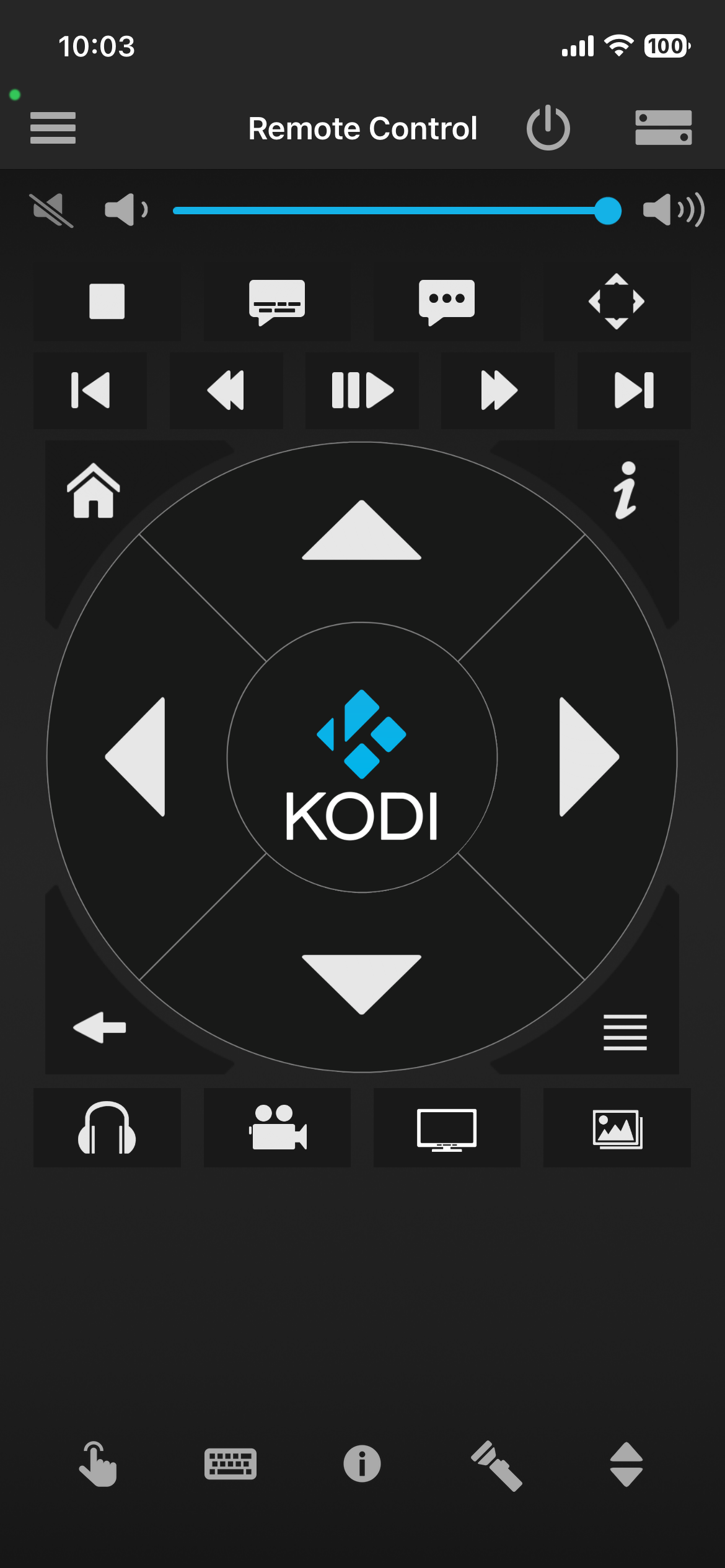
Do you want to control Kodi on your Firestick using tour iPhone or Android phone? Install the official Kodi Remote on to your phone:
Sorting Your Kodi Favourites? Be Sure to Check This Out!

Check out this article on how to organize your Favourites. My custom program addon allows you to easily manage your Kodi Favourites! Located in the MB-KODI repository @ https://m-borsch.github.io/MB-KODI
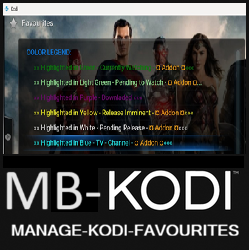
HowTo? - Manage Kodi Favourites - Install "Manage Kodi Favourites" - a Kodi - GitHub Program Addon
Detailed Instructions for “Developer Mode”
- Go to Settings on your Firestick home screen.
- Select My Fire TV (or Device & Software on some models).
- Go to About.
- Select Fire TV/Stick repeatedly until you see a message saying "You are now a developer".
- Go back to the main Settings menu.
- Select My Fire TV (or Device & Software) again, and you should now see Developer Options.